How to Connect Keplr to RUNEBond on Mobile (Step by Step)
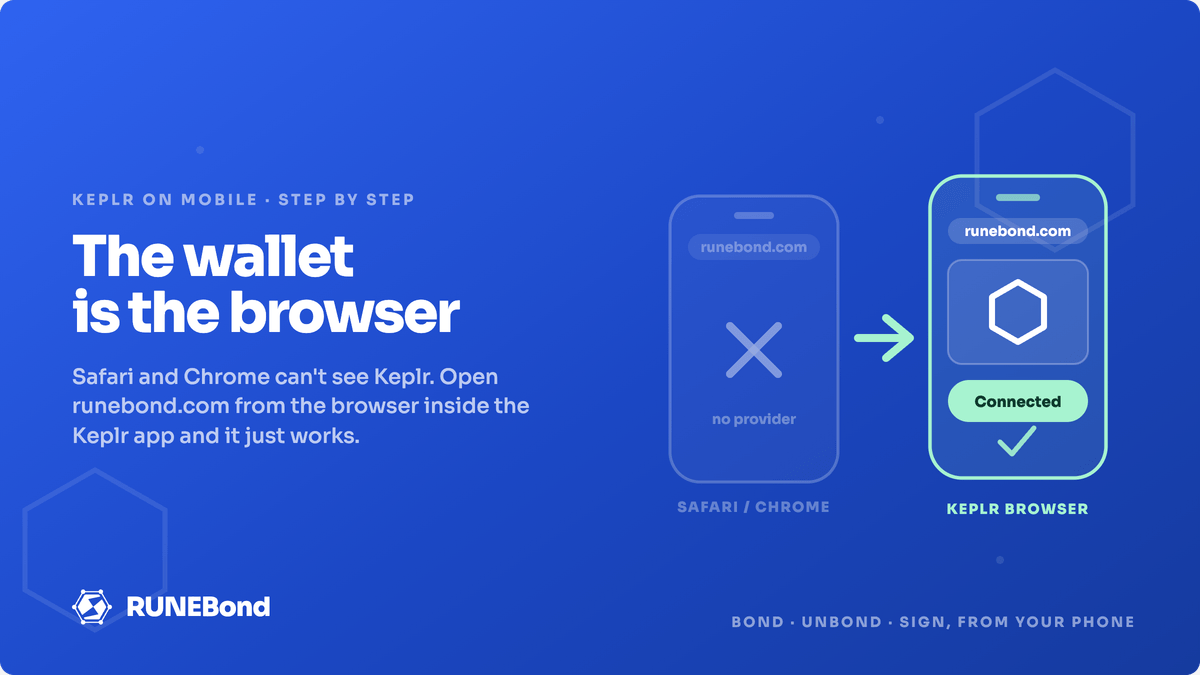
Short answer: yes, you can connect Keplr to RUNEBond from your phone, and it takes about two minutes. The catch is that you have to open RUNEBond from the browser built into the Keplr app — not from Safari or Chrome. That’s the whole trick, and once you know it, the mobile experience is the same as desktop.
If you’ve ever tapped “Connect Wallet” on your phone and got an error saying the Keplr provider isn’t available, this is why — and it’s a browser problem, not a wallet problem.
Why your normal mobile browser can’t see Keplr
On desktop, Keplr is a browser extension. When you open runebond.com, the extension injects a wallet object into the page, RUNEBond detects it, and the Connect button has something to talk to.
Mobile Safari and mobile Chrome don’t support extensions. There’s nothing to inject, so as far as the page is concerned no wallet exists. The site isn’t broken and your wallet isn’t misconfigured — the two simply have no way to reach each other.
On mobile it works the other way round: instead of putting the wallet inside the browser, you put a browser inside the wallet. Keplr’s mobile app ships with one, and pages opened in it get the same wallet interface the extension provides on desktop.
So the requirement isn’t “install something extra”. It’s just “use the right browser”.
Step by step: connecting Keplr to RUNEBond on mobile
1. Install the Keplr mobile app
Get it from the official Keplr mobile app page, which links to the App Store and Google Play builds. Install from there rather than from a store search, since fake wallet apps do show up.
2. Set up or import your account
If you already bond with Keplr on desktop, import that account with its recovery phrase so you land on the same THORChain address. Same address means the same bonds, the same whitelist status and the same history — nothing needs to be redone.
If you’re starting fresh, create a new account and write the recovery phrase down offline. Never type it into a website, and never into anything that isn’t the Keplr app itself.
Either way, make sure THORChain is enabled among your chains so your thor1… address is visible in the app.
3. Open the Browser tab inside Keplr
In the Keplr app, find the Browser (or Web) tab in the bottom navigation. That’s a real browser — it just happens to live inside your wallet.
4. Go to runebond.com
Type runebond.com into its address bar. It’s worth bookmarking inside Keplr’s browser once you’re there, so future visits are one tap and you never end up on a lookalike domain from a search result.
5. Connect
Tap Connect Wallet, choose Keplr, and approve the connection request when Keplr asks. Your address appears in the header and you’re in.
That’s it. From here everything behaves as it does on desktop: browse nodes, request whitelist, bond, unbond, and use the Liquidity Vault.
Signing transactions from your phone
Signing is where mobile actually feels good. RUNEBond builds the transaction, Keplr slides up its approval sheet, you review the details and confirm with your device biometrics or PIN. The key never leaves the app.
Before approving anything, take the extra three seconds to check what’s on the sheet:
- The chain is THORChain and the address matches the node you meant to bond to.
- The amount is what you typed, denominated in RUNE.
- The message type matches the action — a bond looks like a bond, not like a transfer to an address you don’t recognise.
That habit matters more on a phone than on a laptop, because small screens encourage fast tapping. Nothing about mobile makes a transaction less final.
Common problems and how to fix them
You get an error saying the Keplr provider isn’t available. You’re almost certainly in Safari or Chrome rather than in Keplr’s browser. The page looked for the wallet, found nothing, and told you so. Close the tab and reopen the site from inside the Keplr app.
Connected, but the wrong address shows up. Keplr mobile can hold several accounts. Switch accounts in the app, then reload the RUNEBond page so it picks up the change.
No THORChain address at all. THORChain isn’t enabled in your chain list. Add it in Keplr’s chain settings and reload.
You want Vultisig instead. Vultisig reaches RUNEBond through its browser extension only, and there’s no in-app browser equivalent, so that option stays disabled on phones. Your mobile choices are Keplr or a desktop browser.
The short version
Keplr on mobile isn’t a downgrade — it’s just a different door. Install the app, open RUNEBond from the browser inside it, and connect as usual. Everything you can do at a desk you can do from a phone, including signing bonds and unbonds.
Once you’re connected, compare active nodes, bond levels and commission and run the numbers in the earnings simulator before you commit capital — operator selection is still the decision that matters most, whatever screen you make it on.
Related reading: THORChain churn explained, slashing in THORChain, and RUNEBond risks, lock-ups, and why easy bonding matters.
Frequently asked questions
Can I use Keplr with RUNEBond on my phone?
Yes. Install the Keplr mobile app, open its built-in Browser (the Web tab), navigate to runebond.com and connect. The Keplr app injects the same wallet interface a desktop extension provides, so RUNEBond detects it and the connection works exactly as it does on desktop.
Why do I get a "Keplr provider not available" error in Safari or Chrome on mobile?
Because mobile Safari and mobile Chrome do not support browser extensions, so there is no Keplr provider for the page to talk to and RUNEBond reports that it cannot connect. The wallet has to be the browser. Open runebond.com from inside the Keplr app instead of from your normal mobile browser.
Do I need a separate wallet for mobile?
No. Keplr mobile and the Keplr desktop extension can hold the same account — import your existing recovery phrase into the mobile app and you will see the same THORChain address, the same bonds and the same whitelist requests.
Can I sign bond and unbond transactions from the Keplr app?
Yes. Signing happens in Keplr itself: RUNEBond builds the transaction, Keplr shows the approval sheet, and you confirm in the app. Bond, unbond, whitelist requests and Liquidity Vault actions all work the same way as on desktop.
Is Vultisig available on mobile too?
Not through RUNEBond. Vultisig connects to RUNEBond through its browser extension, and there is no in-app browser equivalent, so on a phone that option stays disabled. Use Keplr, or open RUNEBond on a desktop browser.